
Zoom is a cloud-based meeting platform that provides video, audio, and screen sharing options across multiple platforms, including mobile. You can join any Zoom meeting by clicking the meeting URL, or by entering the meeting ID into the Zoom Web Portal, the desktop app, or mobile app.
Join a Meeting
Join a Meeting via URL (Recommended)
- Click the Meeting URL provided by the host. (Usually via email or calendar invitation)
- If necessary, follow the prompts to download and install the Zoom desktop application.
NOTE: You will need to download and install the Zoom desktop application to use meeting chat and participate in polls.
Join a Meeting via the Zoom Web Portal
- Open a web browser and navigate to the Zoom Web Portal at https://zoom.us/.
- Click Join (Connect to a meeting).
- Enter the Meeting ID into the field. The meeting ID is the 9, 10, or 11-digit number located in the meeting invitation or at the end of the Zoom meeting URL.
- Click Join.
- If necessary, follow the prompts to download and install the Zoom desktop application.
NOTE: If the host has decided not to allow participants to join before the host, you will see a message appear on your screen and you will automatically join the meeting when the host arrives.
The Zoom meeting window is displayed. A menu bar containing participant tools appears at the bottom of the Zoom meeting. This menu bar will appear and disappear as you roll your mouse over the area. If a meeting is being recorded, an icon will appear at the top of the window.
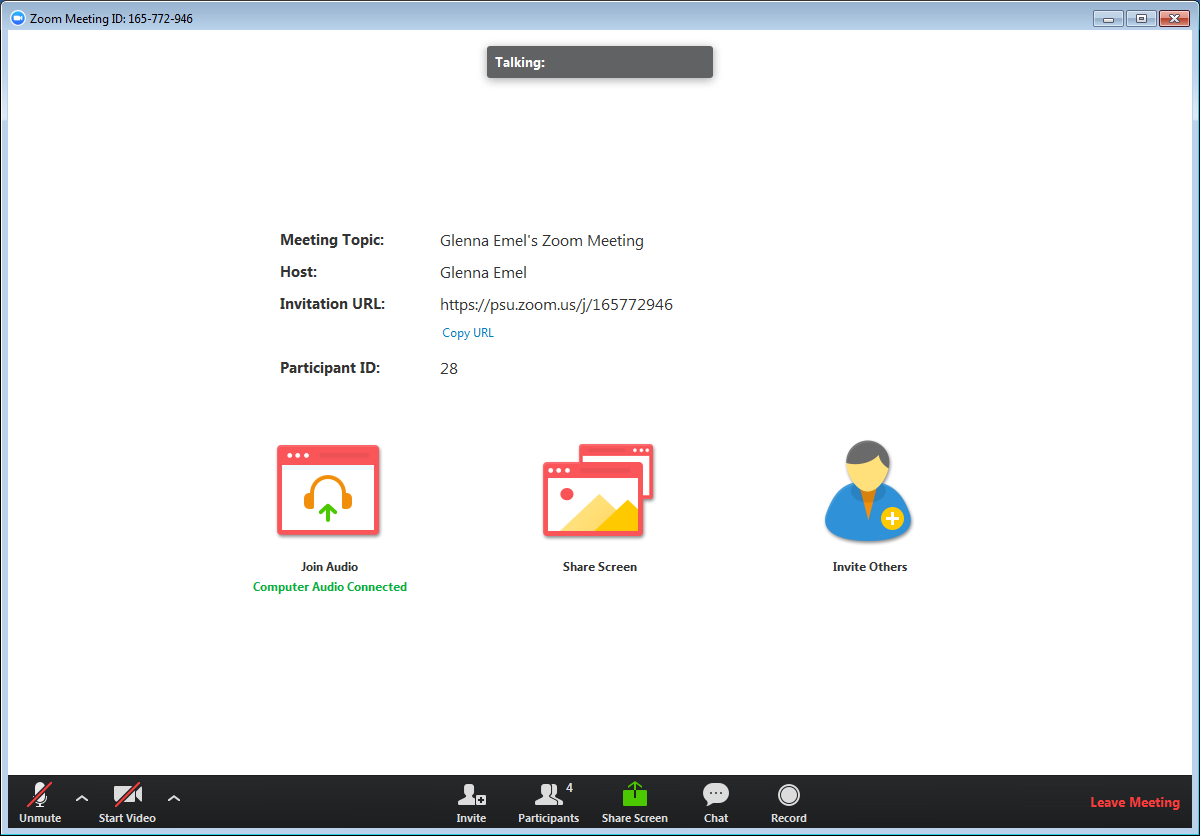
Figure 1: Participant meeting interface with no video or screen sharing displayed.
NOTE: Mobile app interfaces will appear different but contain most of the same functionality. For help with using Zoom on iOS and Android devices, visit the Mobile section of the Zoom Help Center.
Comments
0 comments
Please sign in to leave a comment.