
Teacher 1:1 iPad Setup Instructions
Set Up Your iPad
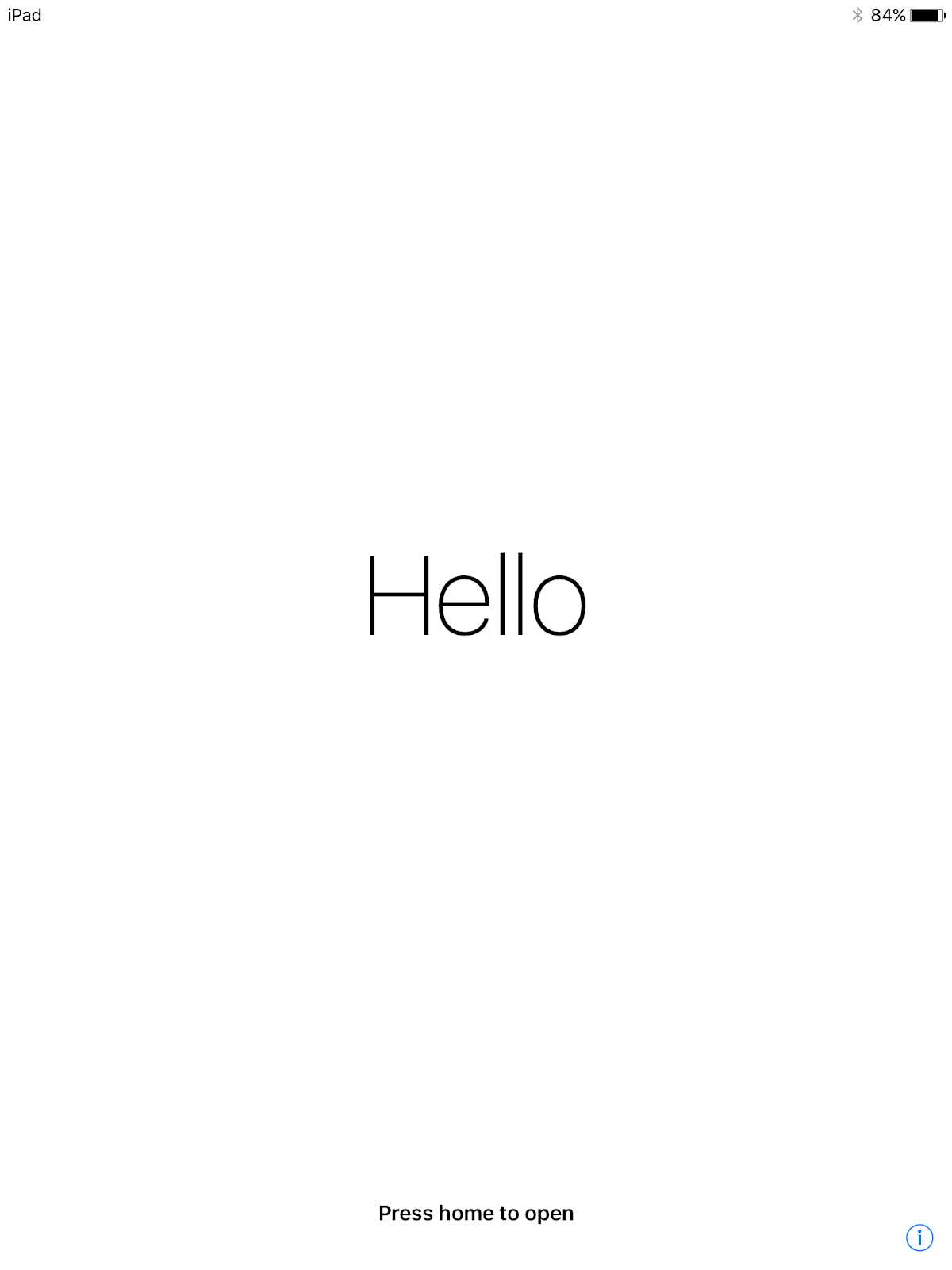
- On the Hello Screen, press home to Set Up iPad
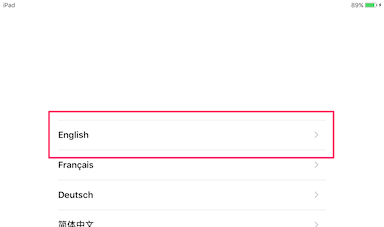
- Select English
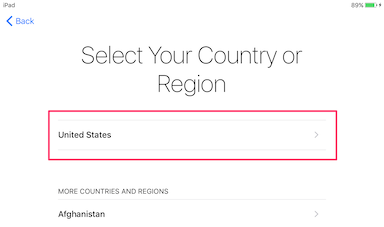
- Select United States
- Select DTSD
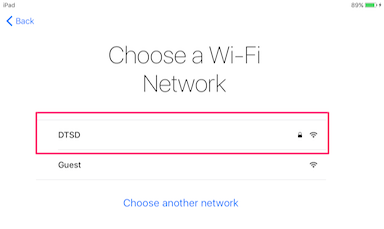
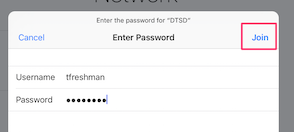
- Enter your network username and password, then click Join
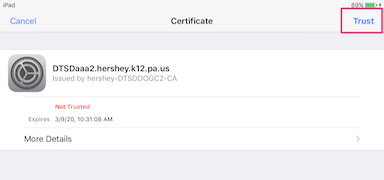
- Select Trust in the upper right hand corner of the screen
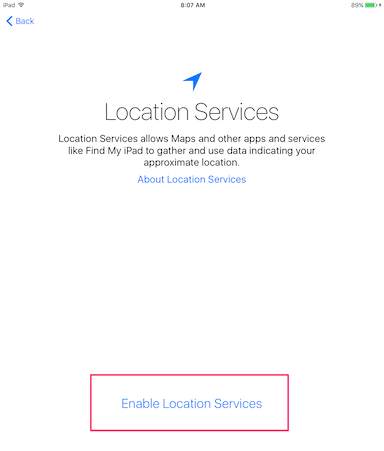
- Select Enable Location Services
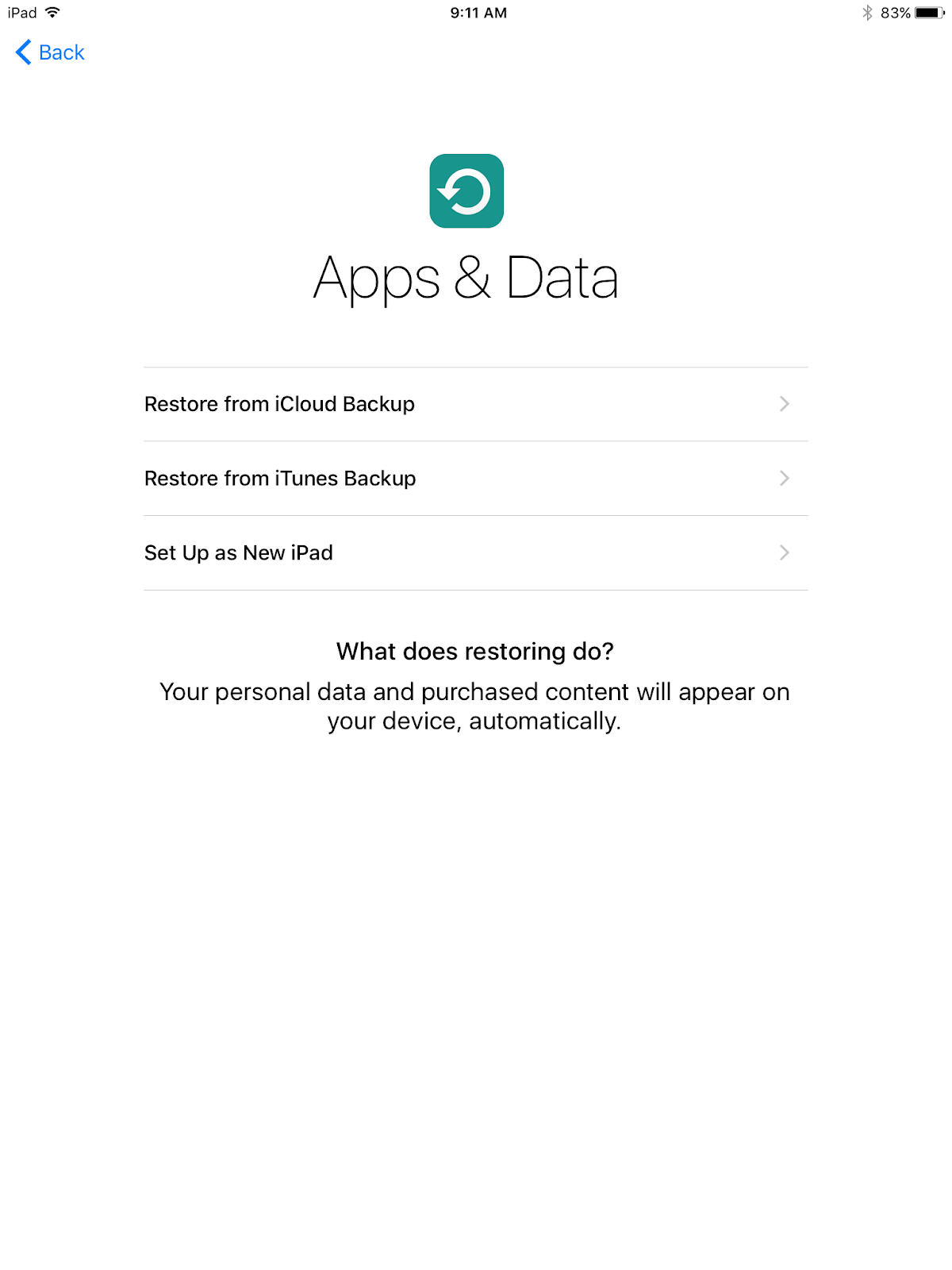
- Select Set Up as New iPad on the Apps & Data screen
- Click on the following links If you would like to restore from iCloud or iTunes.
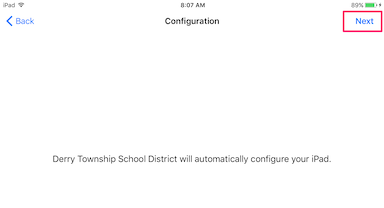
- Select Next in the upper right hand corner of the screen to Configure your iPad
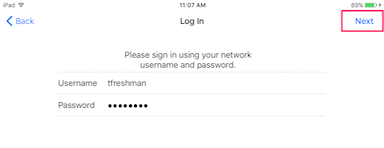
- Enter your username and password, then click Next.
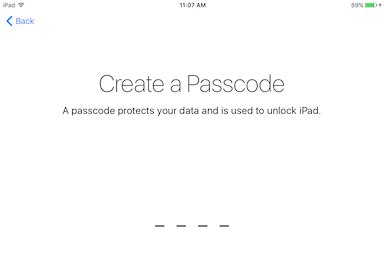
- Enter a Passcode - Passcode options 6 or 4
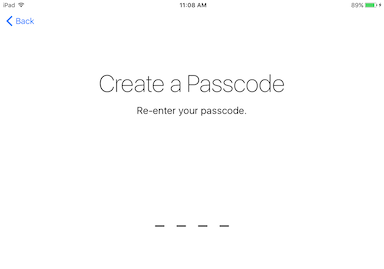
- Confirm your Passcode by entering it again
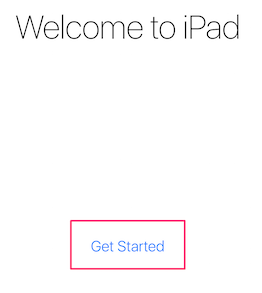
- Select Get Started
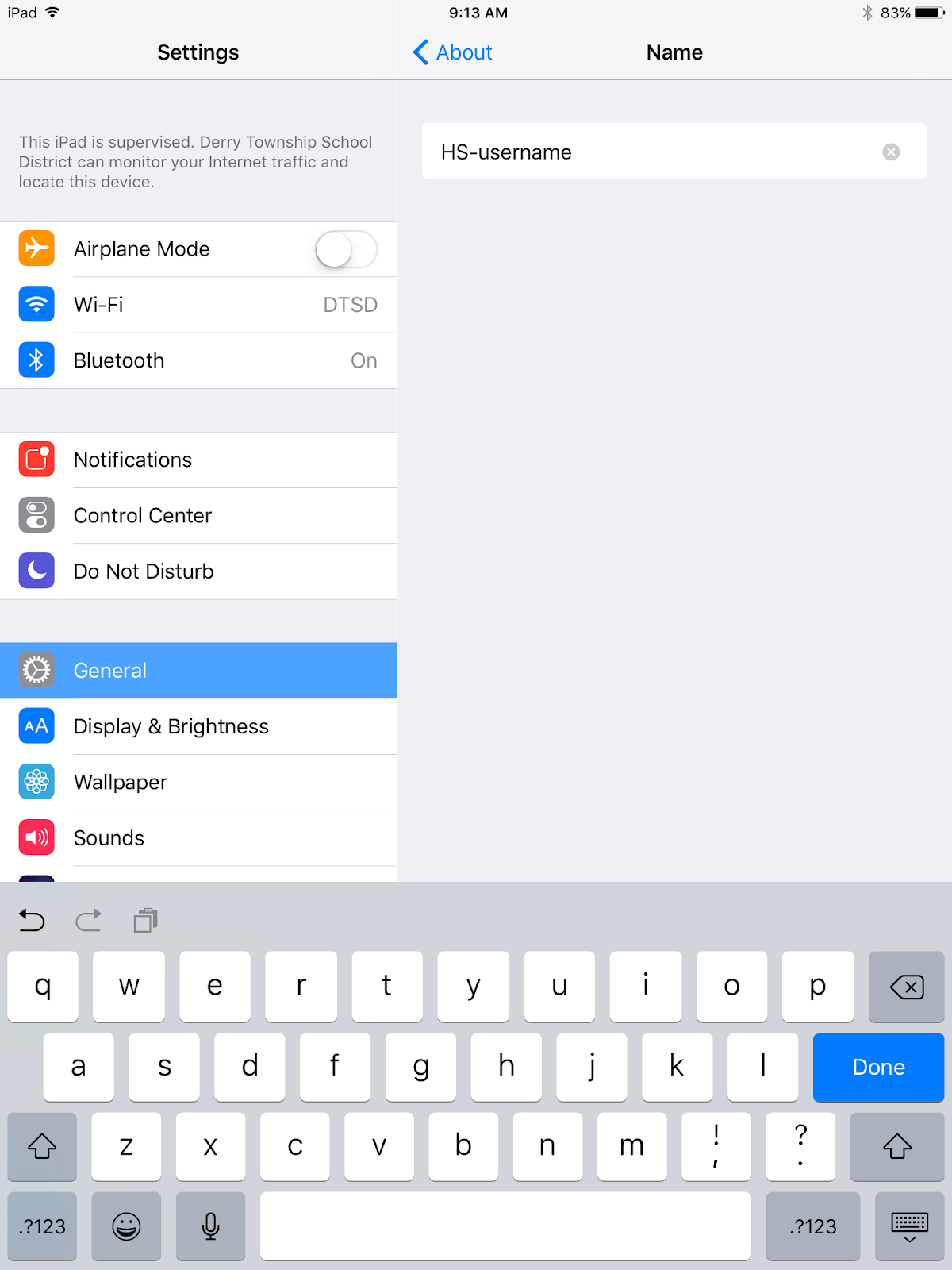
Rename Your iPad
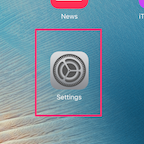
- Click on Settings
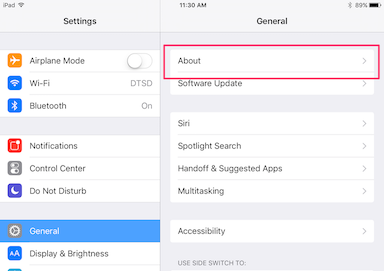
- Select General, then Select About
- Select Name
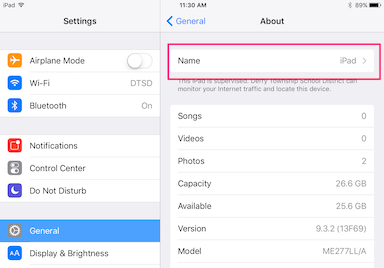
- Enter BuildingInitials+T--username - example (MST-tlandry)
- Select Done
Setup Email on iPads
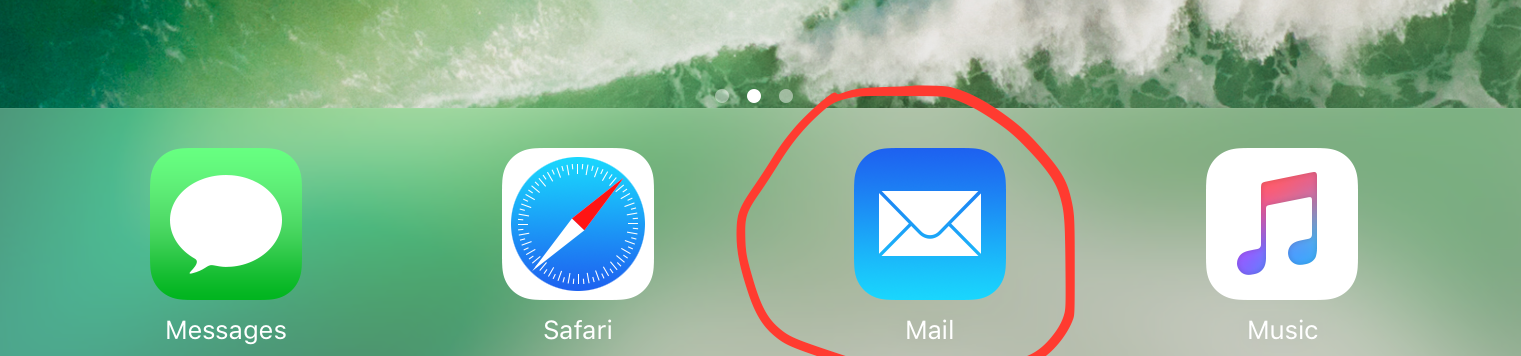
Select the Email Icon on the Doc of your ipad
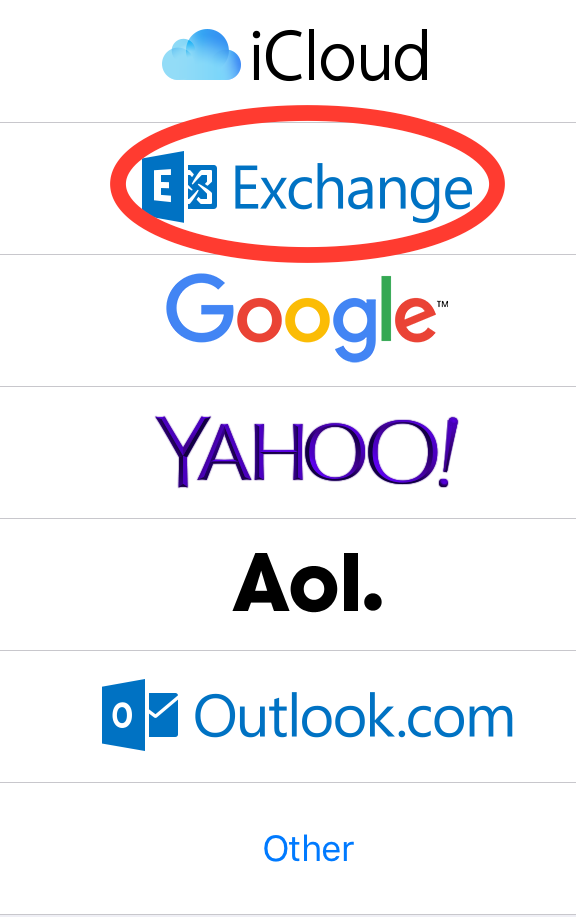
Select Exchange in the Welcome to mail Popup window
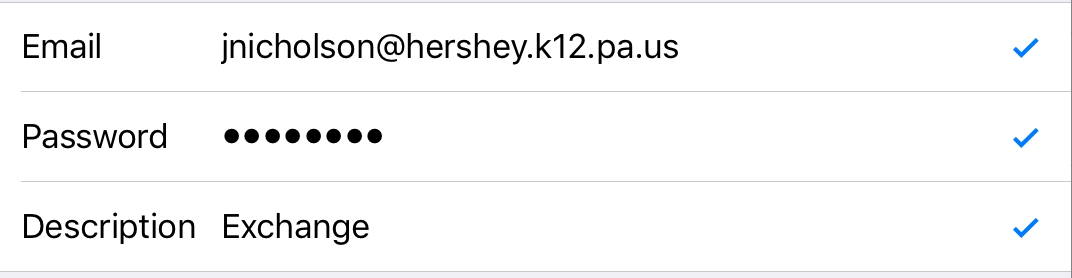
Input your entire email address, and network password for example….
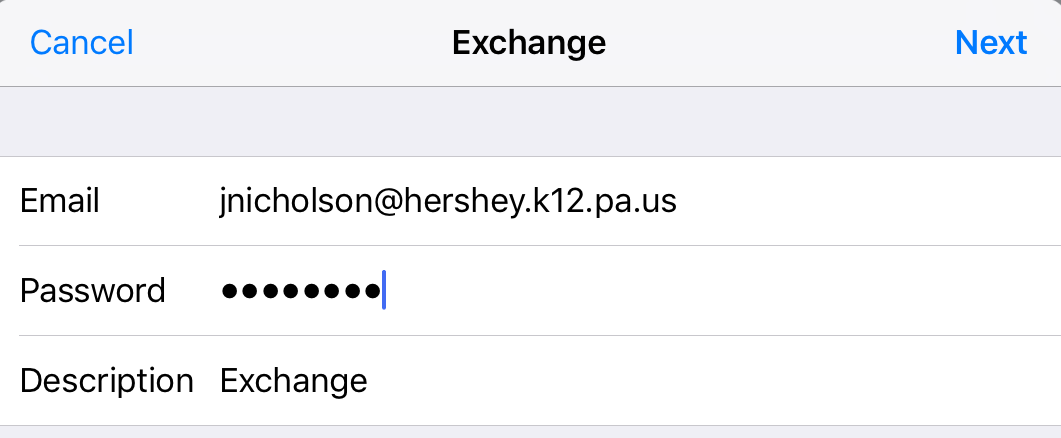
Then Click Next
You should get 3 blue checkmarks to the right of your email address
Next you will see the Exchange popup window…..Select the items you would like to have synced to your ipad...keeping all the things selected is recommended so you don’t miss any information on your mobile device.
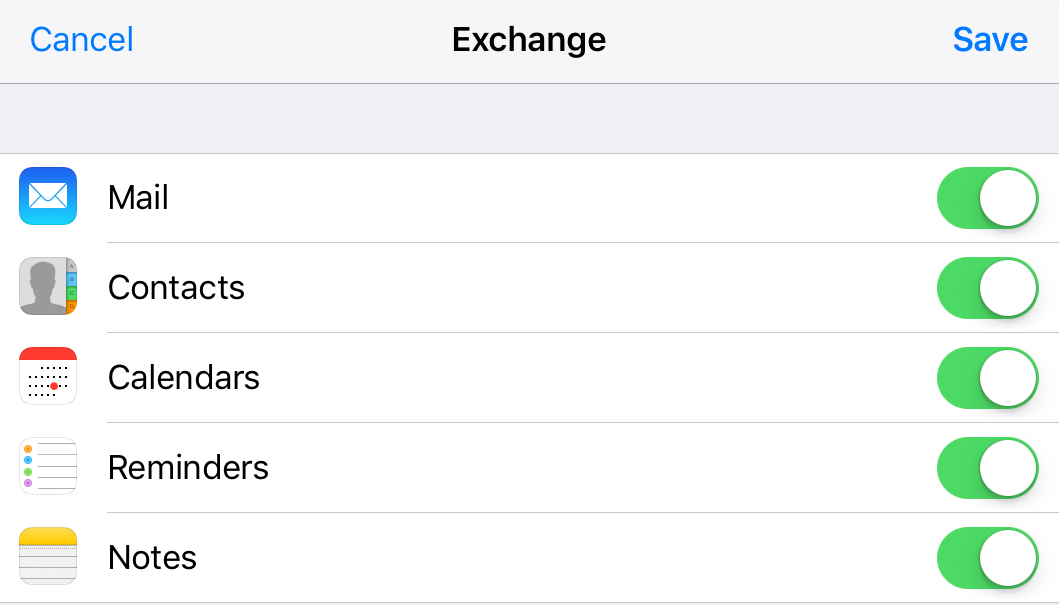
Click Save
Your email is now setup on your ipad!!
Setting Up Google Drive App on your ipad
Select Google Drive on your Homescreen
Select Sign on the bottom left
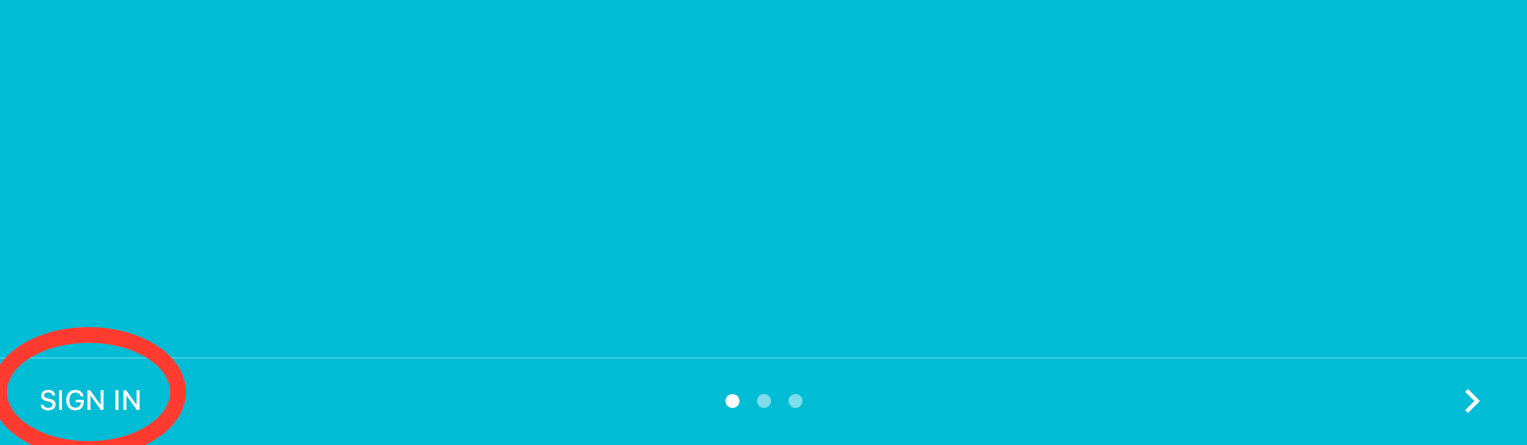
Input your Google Drive Email Address, and Password
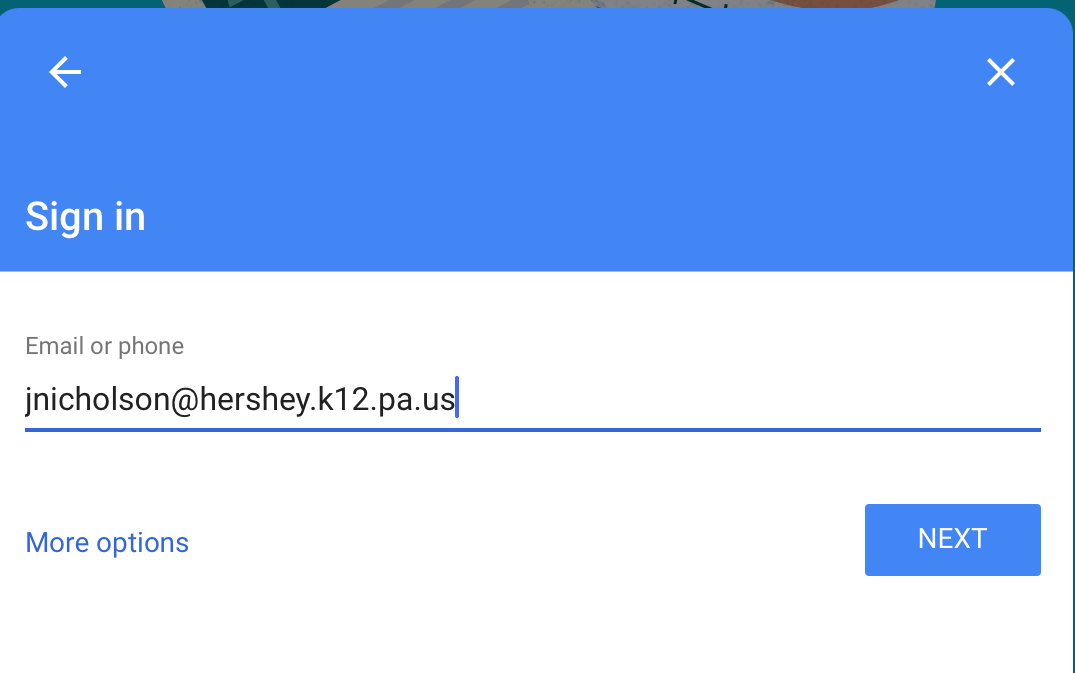
Your Google Drive will now automatically sync to your ipad!
Getting a Canvas icon on your ipad
Click on the Safari Icon on your ipad Homescreen
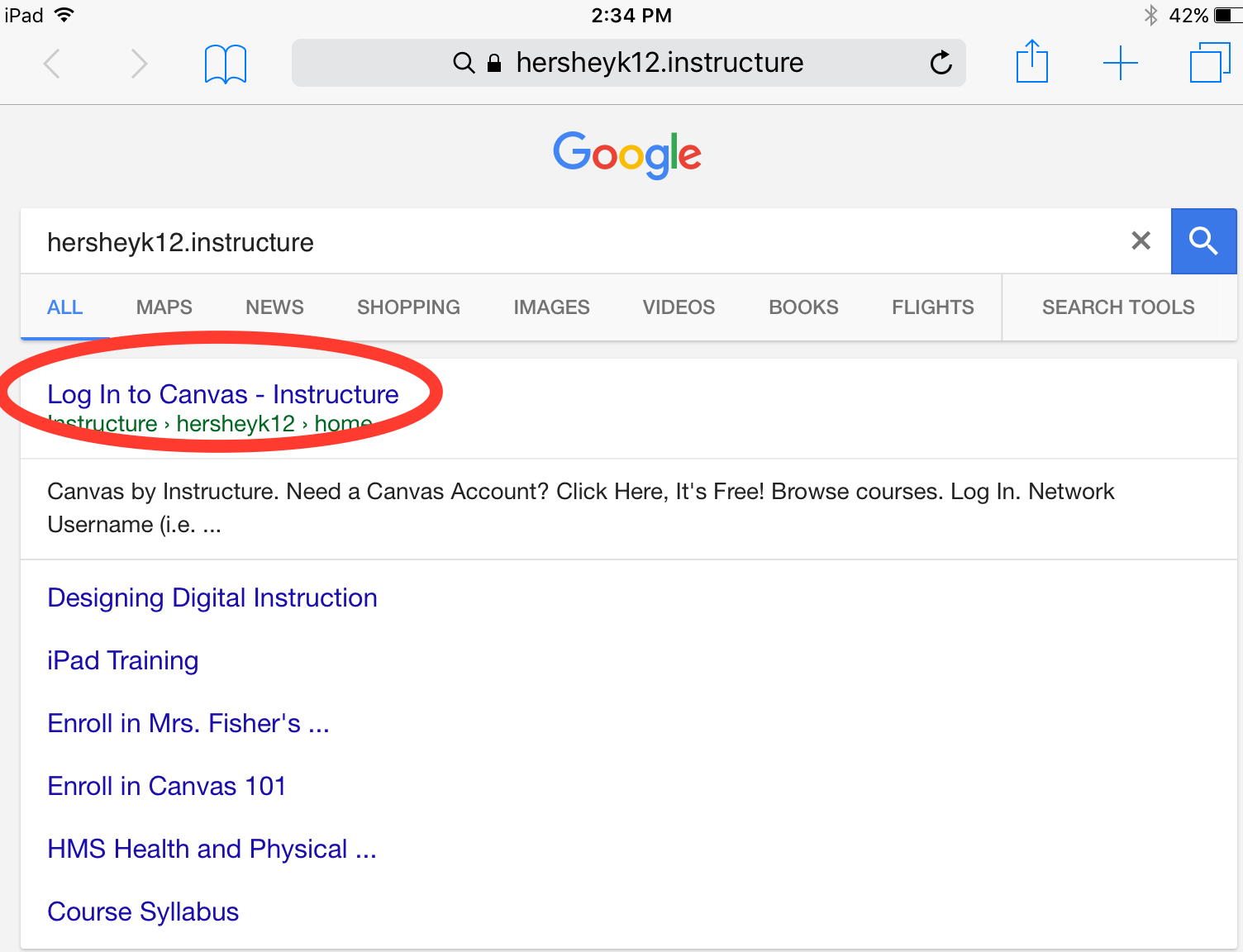
In the address bar type in
hersheyk12.instructure and press the Go key…..Click the first link on the page
This will bring you to the Derry Township Canvas Sign in Page
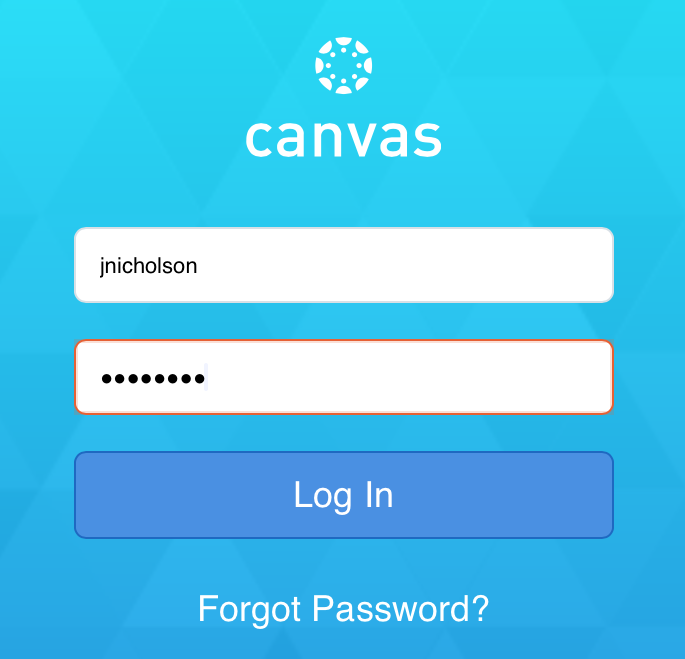
Please input your District Credentials
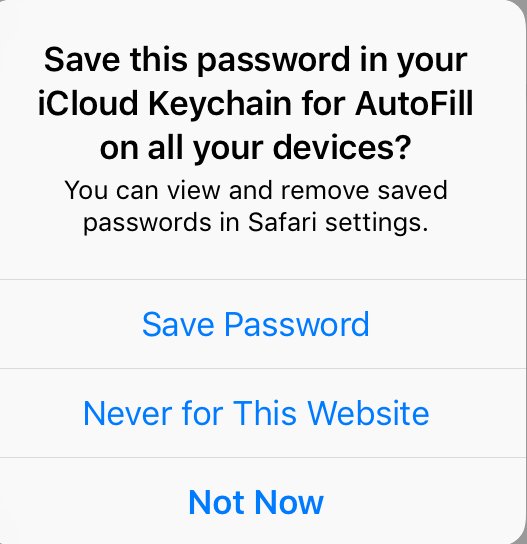
Click save password so you will not have to continually enter your credentials into canvas when you want to access it.
Now you are signed into Canvas we will now make a weblink directly onto your ipads homescreen so it is very easy for you to access Canvas.
On the top right of the screen you will see a little box with an arrow coming out of the top click on it! A drop down menu will appear.
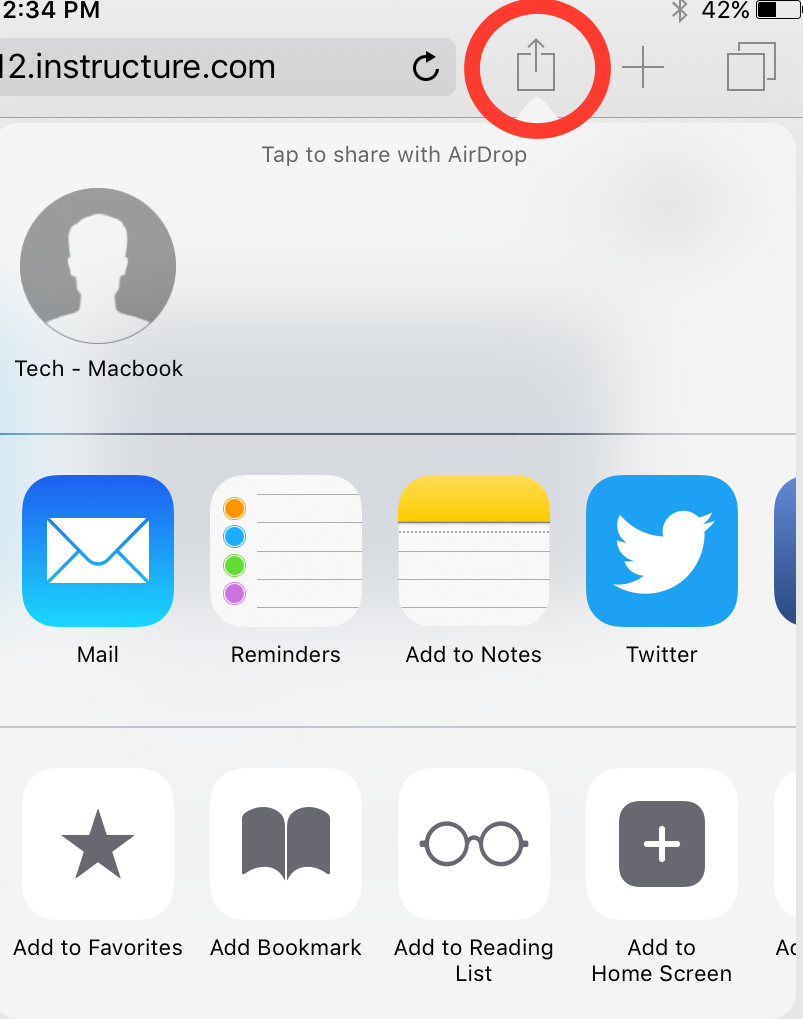
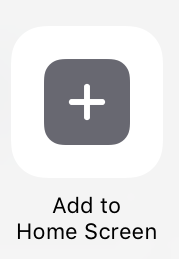
Click the Add to Home Screen icon
From here Rename the item to Canvas
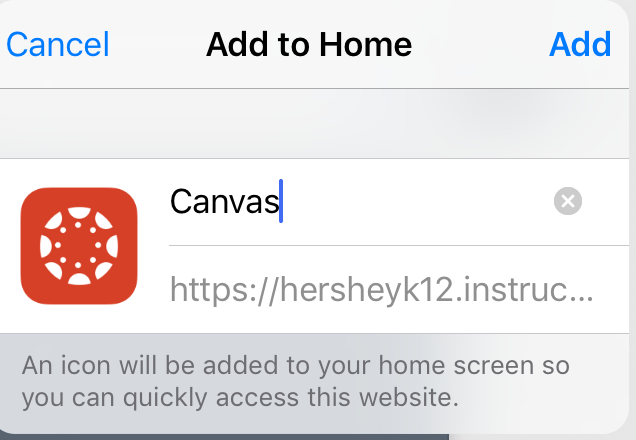
Then Click Add
You will now have a Canvas Icon Located on your Ipads Homescreen

Other topics
- Canvas
- Self Service & Managed Dist
- App poll for Self Service classroom use in Spring
Comments
0 comments
Please sign in to leave a comment.